

Procedure Normalizer Ratio Check
DO NOT advance to this section until Step 1 - Empty Fill Check is complete. If a reader is replaced and this section is executed prior to running the Empty Fill Check, you will receive invalid results for this portion of the reader normalization process resulting in un-necessary re-normalization or replacement of readers.
Check to ensure that the date and time on the instrument is correct. The date and time shown on the AIO must be correct before proceeding or the software may load the incorrect normalization tables after normalization is completed.
Navigate to D: drive and check if the D:\maintenance folder exists. If it doesn’t, create a folder in D: drive with the name “maintenance”.
- Press the Log In button.
- Enter “FSVC” in the User Name field.
- Enter the Service Password in the Password field.
- Place a USB into the side of the AIO containing the file named NormRatio.sql.
- The NormRatio.sql file can be found on the global SharePoint site; found under Global Product Support > Software and Workstation Image > Software > Max > Service Software.
- Select the Maintenance tab.
- Select the Field Service tab.
- Using the scroll bar on the right side of the screen, scroll down and press the SQL Server Mgmt. Studio button. This operation will launch Microsoft SQL Server Management Studio, allowing access to the instrument database.
- When the Connect to Server window appears, press the Connect button (or press ENTER to continue).
- From the main menu, select File > Open > File (CTRL + O).
- Verify that the file filter drop down reads “SQL Server files (*.sql)”.
- Navigate to the USB and find the file named NormRatio.sql and press the Open button. The SQL query for calculating the reader Normalizer Ratios will open within the application.
- Press F5 to execute the SQL query.
- The query results will be displayed in a results table with the following columns (see screenshot and section definitions).
- The NormRatio.sql query will generate a CSV output file of the results that were displayed to the screen.
- This file will be stored in the following location: D:\maintenance\NormRatio.csv.
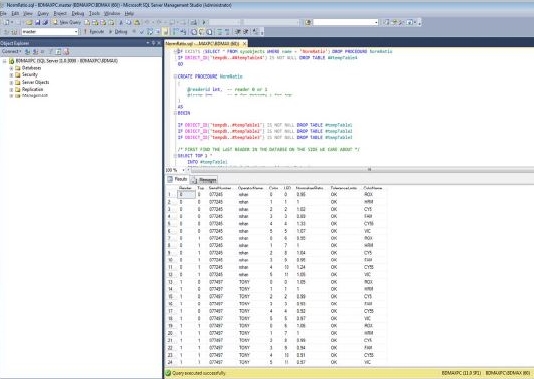
Fig: ReaderNorm.SQL file executed
- Reader
0 – Reader A; 1 – Reader B
- Top
0 – Bottom LEDs; 1 – Top LEDs
- Serial Number - the reader Serial Number
- Operator Name - the operator that last renormalized the given reader
- Color
0 – ROX
1 – Unused
2 – Cy5
3 – FAM
4 – Cy5.5
5 – VIC
- LED
0 ROX Bottom 6 ROX Top 1 Unused Bottom 7 Unused Top 2 Cy5 Bottom 8 Cy5 Top 3 Fam Bottom 9 FAM Top 4 Cy5.5 Bottom 10 Cy5.5 Top 5 VIC Bottom 11 VIC Top
- Tolerance Limits
OK – The given optics channel meets acceptable normalizer ratio limits.RENORMALIZE – The given optics channel has drifted and requires renormalization.
- Color
ROX 585
Cy5 630 FAM 475 Cy5.5 680 VIC 530
- If any of the values in the ToleranceLimits column read RENORMALIZE, proceed to Reader Normalization for the given reader. If BD MAX Reader Normalizer Cards (SAP# 443685) are not available, consider reader replacement.
- Close SQL Server Management Studio.